briDJe User Manual
Library and Player
Last updated
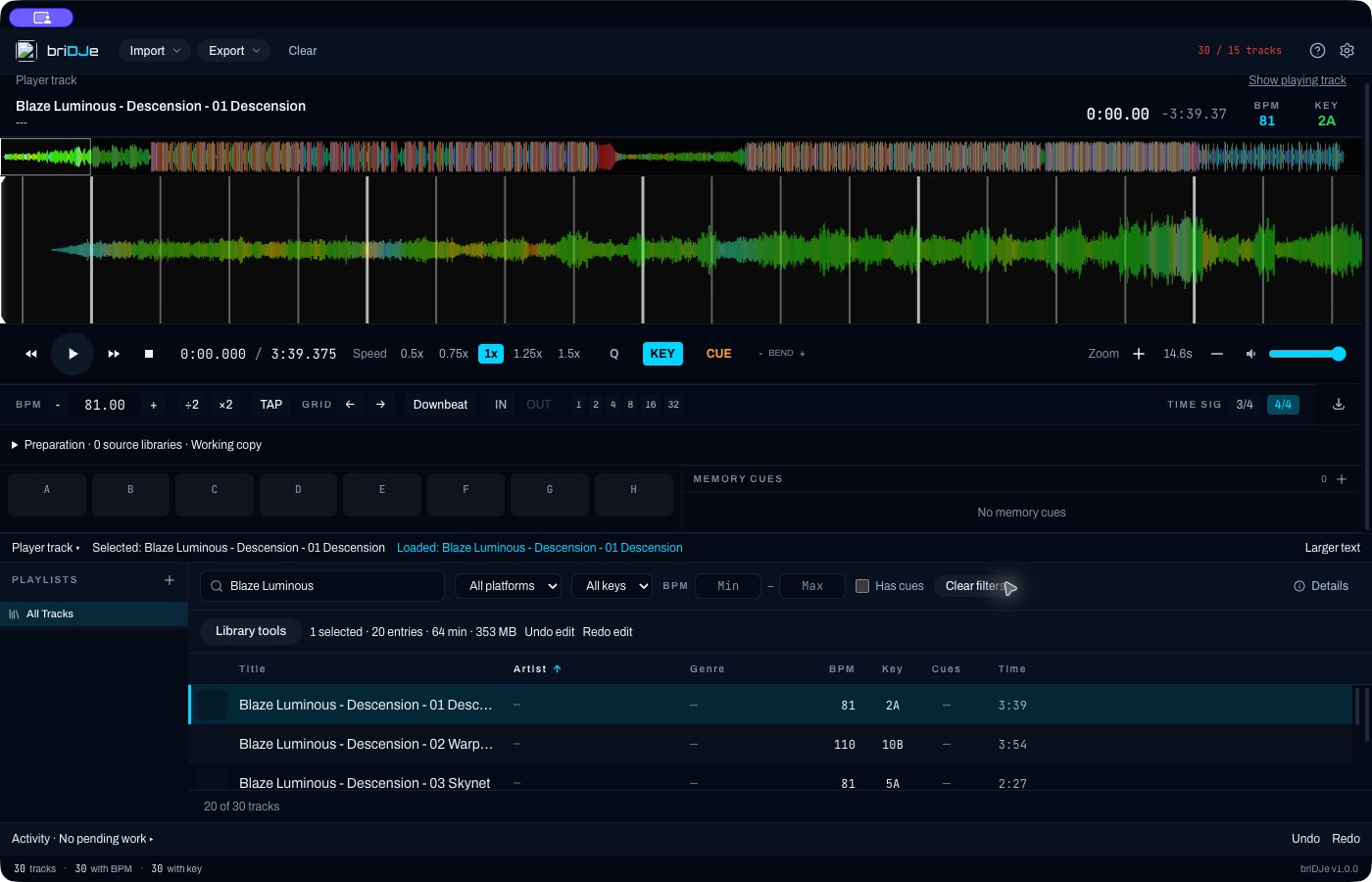
The library with one track loaded. The deck edits the loaded track, not whichever row is highlighted.
Selected is not loaded
A highlighted row is the selected track. The track in the deck is the loaded track. Cue, loop and grid edits made from the deck apply to the loaded track, so check which one you are looking at before you edit.
To load a track, right-click it and choose Load to Deck, or select it and press Enter. Enter only loads when focus is not inside a text input, button or dialog. Double-click a title to edit it inline instead.
Finding tracks
Use the search box, the platform and key filters, the BPM min/max fields and Has cues. Clear filters resets them all. Click a column header to sort. Right-click a header to choose which columns show or to reset them.
Select with Cmd/Ctrl+click, extend with Shift+click, and press Cmd/Ctrl+A to select every visible track. Batch actions in Library tools act on the selected tracks that are currently visible, so a filter narrows the scope.
Library tools
Open Library tools to batch-edit artist, album, genre, label, color, rating and protection, to add tracks to a playlist, and to see the selected count, duration and size. See Metadata and Playlists.
The health filters find tracks with missing grids or cues, loops or tempo changes, recent changes, related BPM or key, and missing audio or artwork. Use the clear-review option to leave a health view.
Duplicate title/artist matches are candidates. Two files can share tags and still be different recordings, so listen before you remove anything.
Remove from library removes the entry only; it does not delete audio files. Clear working library is destructive and asks for confirmation. It is not a routine tidy-up tool.
The player
Spaceplays or pauses;←/→seek 5 seconds; stop returns to the start.Dopens Details.- The overview waveform lets you jump anywhere in the track. The detailed waveform scrolls and zooms, and shows beat and downbeat overlays plus cue and loop regions.
- Waveform colors help you see the shape of a track. They are not proof that the track was structurally analyzed.
- Speed offers 0.5, 0.75, 1, 1.25 and 1.5. KeyLock keeps pitch. Quantize snaps new cues and loops. Hold-to-preview snaps back on release, and bend responds while held.
- Volume and output device are set in the player and in Settings.
Cues and loops are covered in Hot Cues and Loops.
Activity, undo and redo
The Activity panel lists running operations, errors and results. There is no generic cancel button, so don’t start a large operation expecting to stop it halfway.
Cmd/Ctrl+Z undoes saved working-copy edits, and Shift+Cmd/Ctrl+Z redoes them. Undo does not reverse exported files or tags already written to audio files. See Exporting and Backups.